First steps after logging in and first recording
Goal: Log in to Cora AI, test your microphone, and record your first visit.
Step 1 – Go to the website
- Open your browser and go to: hicora.ai
- In the top right corner, click the "Log in" button.
Step 2 – Log in
- Enter your e-mail address and password.
- Click the "Log in" button.
Step 3 – Allow microphone access
- After logging in, a prompt for microphone access will appear.
- Click "Allow" — without this, Cora AI will not be able to record conversations with patients.
Step 4 – Microphone test
- The onboarding process will begin. Click "Start microphone test".
- Select the appropriate microphone from the list (e.g. laptop microphone, external USB, or headset).
- Click "Start recording" and say a few sentences — you can move around the room to check the range and quality.
- Click "Stop recording".
- You can:
- Click "Play back" — to assess the recording quality.
- Click "Start over" — if you want to record again.
- If the sound is clear, click "Finish test".
Step 5 – Go to the recordings list
- After the test, you will see the recordings list screen.
- If the account is new — the list will be empty.
Step 6 – Start your first visit recording
- In the top right corner, click the black "Start recording" button.
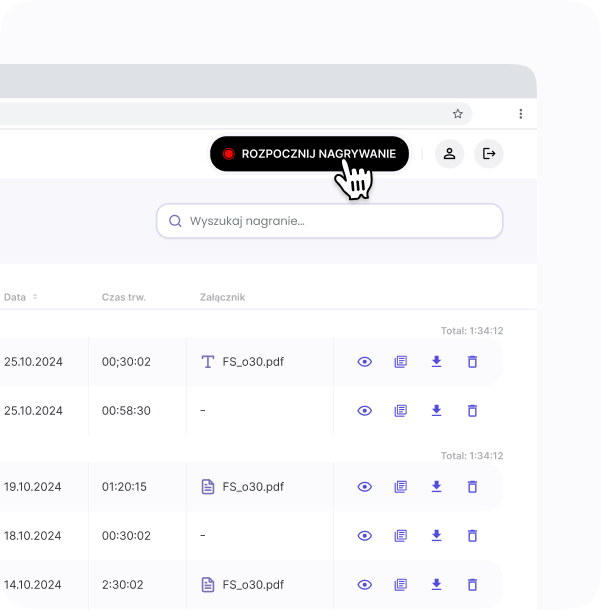
- Cora AI will begin recording the conversation in the background.
Step 7 – Additional recording settings
- While recording, you can:
- Name the visit (e.g. "Patient John Smith – check-up").
- Add a tag — e.g. "English-speaking", "speech issue".
- If you want to talk about things unrelated to therapy, click "Pause".
- To finish recording, click "Stop".
Step 8 – Recording preview
- The completed recording will appear in the list.
- Click the eye icon next to the recording to view details.
- On the left you will see the transcription (conversation text), and on the right the summary (ready note divided into sections).
- The status "processing" means Cora AI is finishing the conversation analysis — this usually takes a few seconds.
Tips:
- Stop the recording only after saying goodbye to the patient — this way AI will capture all visit details.
- If the sound quality is poor, change the microphone settings in the browser or select a different device.